
Student Accessibility Services
Student Accessibility Services (SAS) facilitates academic accommodations for students with documented disabilities. We collaborate with students to create plans for reasonable accommodations that promote equal access to education and opportunity. Our objective is to address environmental or institutional barriers that when combined with a disability, may limit a student’s access or opportunities compared to their peers.
Student Accessibility Services
Register with Student Accessibility Services
Student Accessibility Services (SAS) is open for new intakes or consultation appointments year-round. Appointment wait times during peak periods may be 2 to 3 weeks depending on accessibility coordinator availability. New or updated academic accommodation plans may take a month or more to implement.
Collect your documentation
Students registering with SAS must provide verification of disability from a registered health professional. The Verification of Disability Form (PDF) or other medical documentation should include the following information.
- A clinical diagnosis of your relevant medical condition(s)
- The name of the person who made the diagnosis and their credential(s)
- The date of the testing
- Indicators of how your condition(s) affect you day to day
- Recommendations for suggested accommodations
- Duration of your condition(s) (temporary or permanent), and length of time you’ll need accommodations
Note: Students with documented learning disabilities are required to provide a copy of their most recent psycho-educational assessment.
Please contact our office directly if you or your registered health professional are unsure about the type of information required.
Role of medical documentation in decision making
Documentation of disability or diagnosis does not guarantee that a student will receive their preferred or requested accommodations. Accommodations are implemented to address a specific barrier to equal access and without reasonable accommodation the student will experience a disadvantage compared to their nondisabled peers.
- Medical documentation helps show that a student has a disability, however, it is only one part of the accommodation decision making process.
- Recommendations by a registered health professional are not final when determining academic accommodations. SAS has the authority to decide whether the accommodation is reasonable in a university setting.
- When reviewing medical documentation SAS considers multiple factors:
- What specific barrier is being addressed by the requested accommodation;
- Whether the accommodation fits within the academic requirements;
- Whether it changes essential parts of a course or program;
- What is feasible for the university;
- What are the legal guidelines under disability law.
- Final accommodation decisions are made by Student Accessibility Services, not by medical providers.
Are you waiting on documentation?
Please fill out the online intake form if you are still waiting on documentation from your registered health professional. An accessibility coordinator will meet with you for a consultation to discuss your needs, but accommodations will not be implemented until documentation is received.
Complete the Online Intake form
Once you have all your documentation gathered, you must complete the online intake form.
Alternate format versions of the form and registration options for prospective students with no UM student email are available by contacting our office.
Using the Online Intake form
- Select the Online intake link on the right of this page.
- Log-in with your UMNetID and multi-factor authentication.
- If you arrive at a menu screen, select the "Online Intake" module link which is third down on the left-hand side.
- Please read through the initial information on the form and verify your First Name, Last Name, Student Number and Email address as provided by Aurora.
- Proceed to provide the information requested in the form, paying specific attention to the Current Concerns section.
We encourage you to upload the SAS Confidentiality and Exchange of Information form and the Verification of Disability (or other medical documentation) when submitting. Please consolidate photo files into one document (.doc, .pdf) as there are limits to the number of files you may upload.
If you do not have documentation yet available or if your medical professional is sending a copy to our office, you may indicate this on the form.
- Submit the form and the intake team will be in touch to schedule an appointment.
Meet with an accessibility coordinator
After completing your online intake form, an initial appointment with an accessibility coordinator will be scheduled. During this meeting you will be invited to discuss your educational goals and program details, any barriers to equal access you are experiencing, and potential accommodations.
Following this meeting you will receive a summary email outlining your accommodation plan and providing additional details about processes, deadlines, and your responsibilities. Save this email as it will contain important information you may need to refer to later.
Keep your accessibility coordinator informed of any health updates or program changes to ensure your accommodation plan remains current. If you have questions or encounter challenges while implementing your accommodations, please reach out. Notifying your accessibility coordinator of any issues increases the likelihood of a smooth resolution.
SAS staff aim to respond to emails and phone messages as quickly as possible. During peak times, please allow 2-3 business days for a response. Staff do not check messages outside of regular business hours. We ask that you avoid sending multiple emails regarding the same issue as this may further delay response times.
How academic accommodations are determined
SAS works with students in a personalized, interactive way to identify reasonable accommodations that support equal access to education. The focus is on addressing barriers in the environment that may limit a student’s access or opportunities because of a disability. Accommodations are approved when they help ensure equal access. This can include access to course materials, the ability to demonstrate knowledge, or participating in campus life.
What is (and is not) the purpose of an accommodation?
- Accommodations are implemented for students with disabilities to ensure equitable access to education.
- They are designed to remove or reduce barriers in the learning environment that nondisabled students do not experience.
- The goal is to support how students complete their academic work, without changing the expectations or lowering academic standards. For example, a student might be given extra time on an exam, rather than having fewer or easier questions.
- Accommodations are not meant to guarantee success, remove discomfort, treat symptoms, or make things easier. They are there to ensure that students are not disadvantaged because of a disability.
To make accommodation decisions, SAS considers:
- The student’s description of their history, functional impacts of their disability, and identified barriers
- Documentation from a registered health professional
- Best practice for accommodations in higher education
- Potential impact on academic requirements
- Input from faculty administrators and instructors when needed
Challenges or preferences alone do not guarantee automatic approval of requested accommodations. Students must show a clear connection between their disability and how a specific environment or barrier affects them differently than other students. Each request is reviewed individually.
Assistance for academic accessibility at University of Manitoba



Volunteer note sharing
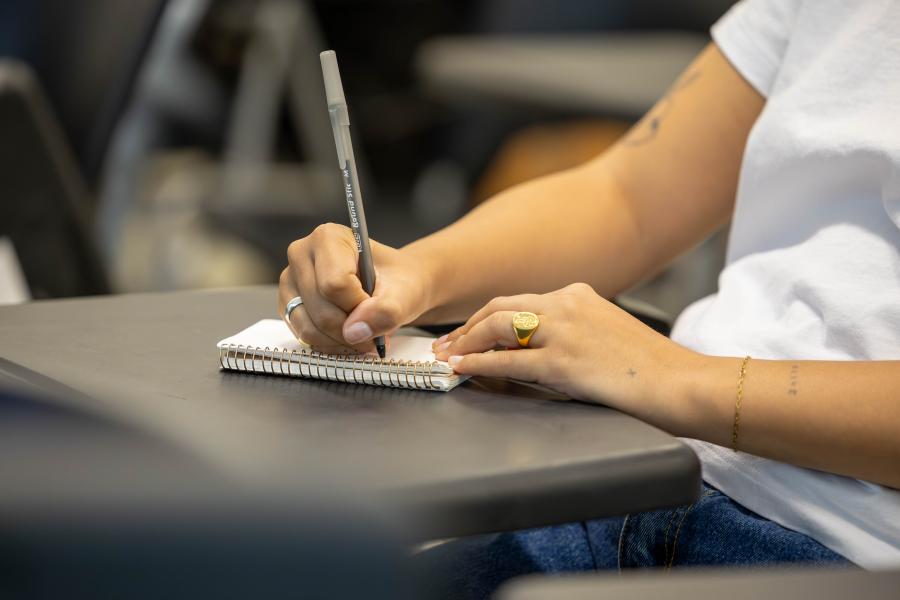
Student volunteer notetakers to anonymously share notes with students who have academic accommodations related to notetaking and access to course materials.
Support fellow learners reach their academic goals. Join our team of volunteer notetakers! Participation is simple:
- Sign up to be a volunteer notetaker
- Write your class notes in the format you are most comfortable (e.g. typed or handwritten)
- Upload them to the SAS Notetaker Portal.
Benefits of note sharing reported by past notetakers:
- Improved quality of notes
- Increased attention to detail
- Increased motivation to participate in course
Volunteers receive credit on their Experience Record in late May for regularly uploading notes each term.
Uploading notes in the student portal
Written Instructions
After you log into the SAS Portal with multi-factor authentication:
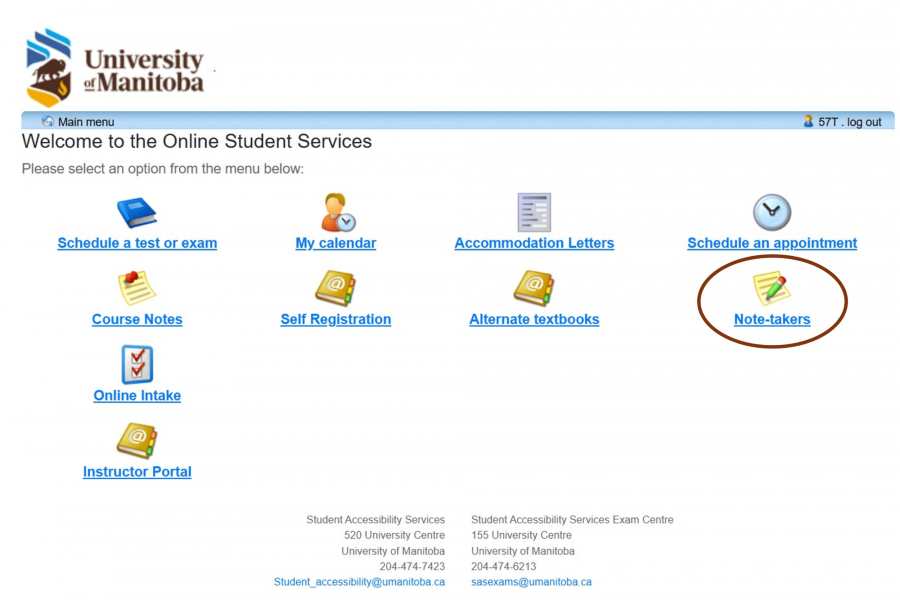
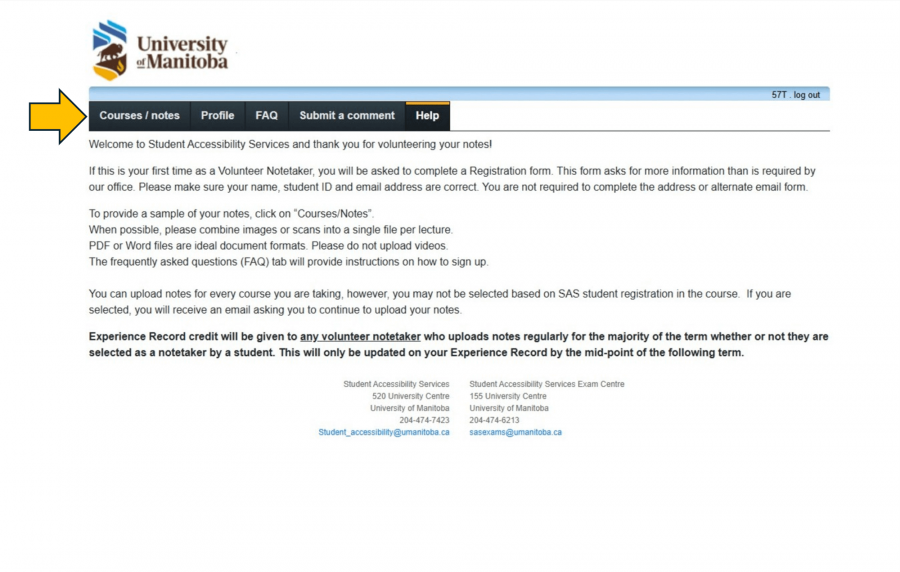
- Select "Note-takers" on the homepage or, if you automatically arrived at the Volunteer Note Sharing help screen, select the "Courses/notes" option in the top left corner.
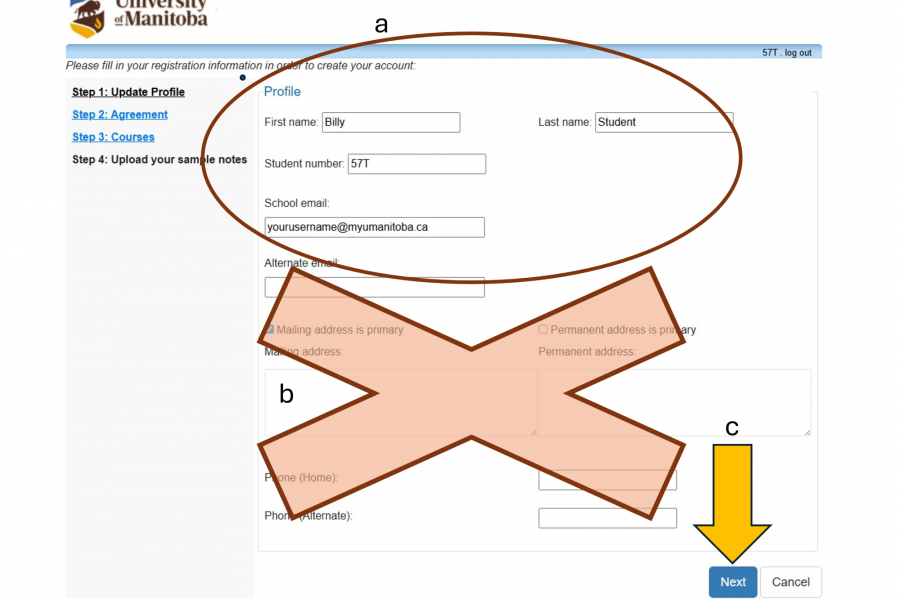
- You may be required to fill in some personal info or it will be auto-filled from Aurora. Note that the bottom portion of the page asking for your address is not required by our office.
- On the next page, a list of your course codes will appear. For each class that you would like to volunteer, please click "upload sample notes".
- Select the date that the notes are from in the calendar drop down. Click "browse" to upload the files from your computer. Once complete, select "Submit notes".
- You may now view the notes you have submitted.
- If have been selected to be a volunteer notetaker, you will receive an automatic email notification from the SAS office. In the portal you will see that you have been selected beside the course code. Continue to upload all of your notes in the same way, the only difference now is that the link says "Upload notes."
Screenshot instructions
After you log into the SAS Portal with multi-factor authentication
- If you arrive on the SAS Portal menu screen, select the "Note-takers" module link.
- Select "Course / notes" in the upper left hand corner under the UM Logo.
If you are a first time volunteer notetaker, you must complete a profile.
a. The top information should be pre-filled from Aurora.
b. The second half asks for your address and other unnecessary information. You are not required to complete this information.
c. Select "Next" to proceed.
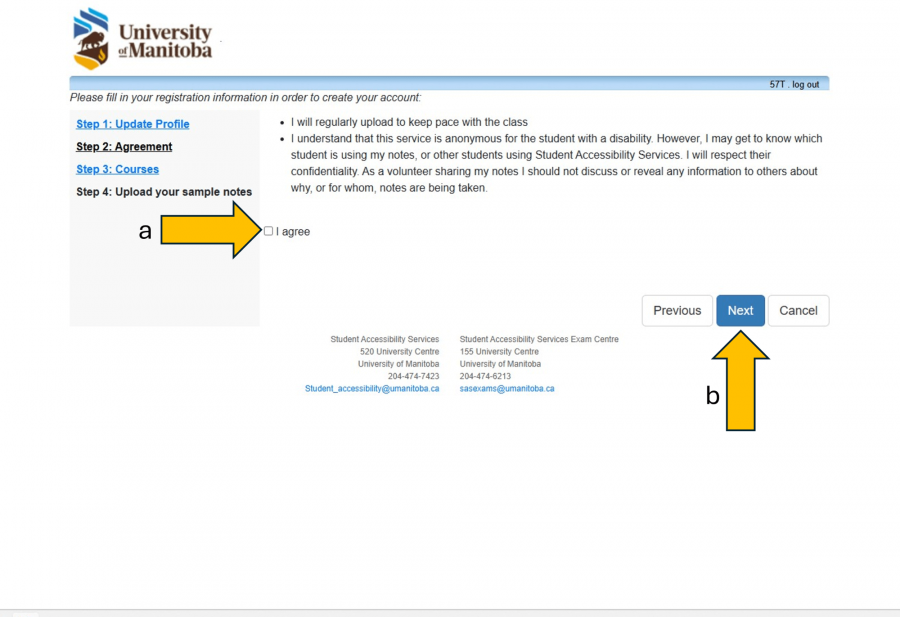
a. Read through and agree to the terms and confidentiality agreement.
b. Select "Next" to continue.
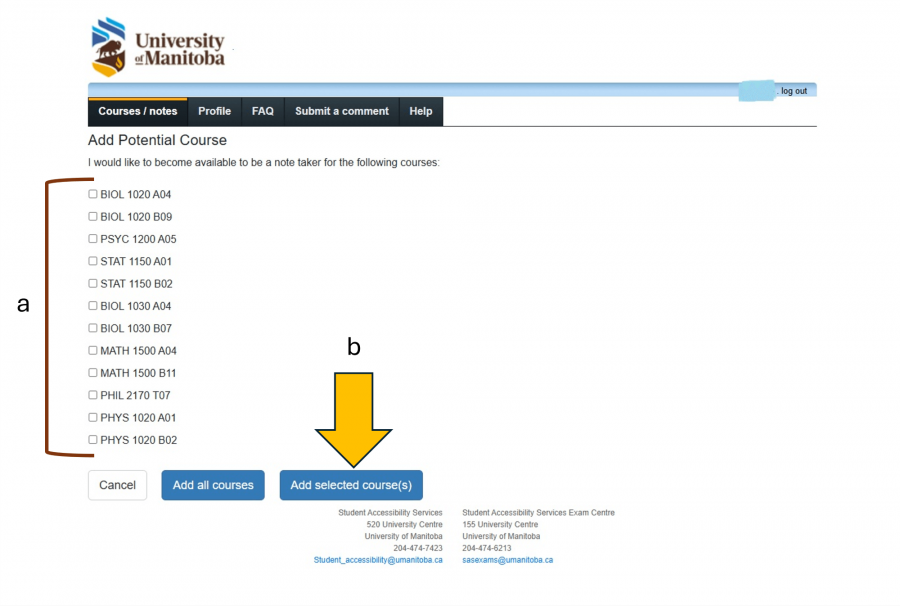
a. Add courses to your profile by selecting from the list of courses in which you are registered.
b. Click "Add selected course(s)" to continue.
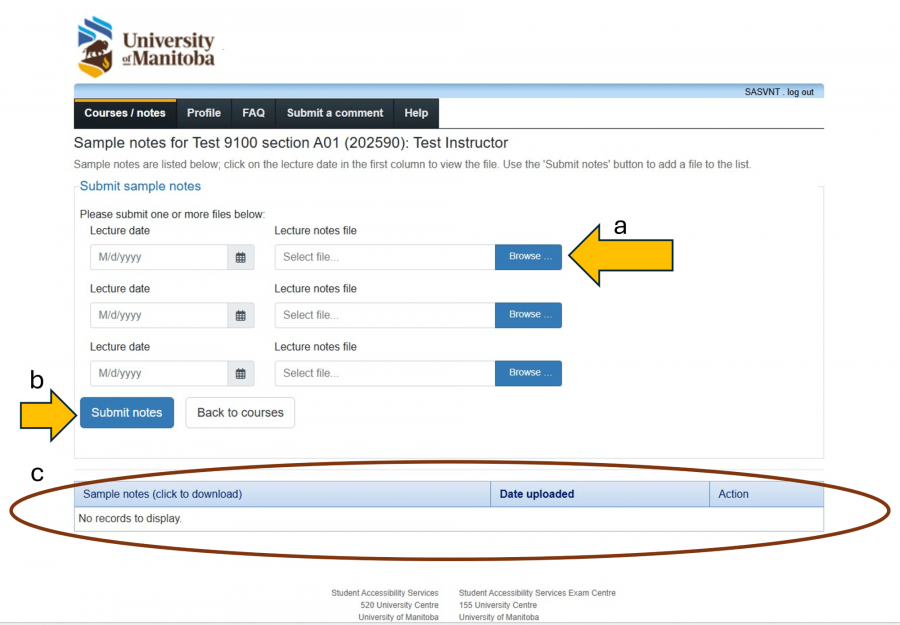
Uploading sample notes for each course helps students determine if your notes fit their learning style.
a. Select the lecture date and then "Browse" to select a file from your computer. Note: It is very helpful to consolidate documents related to one lecture into a single file for uploading.
b. Select "Submit notes" to continue.
c. Sample notes already on file will be listed in the table at the bottom of this screen.
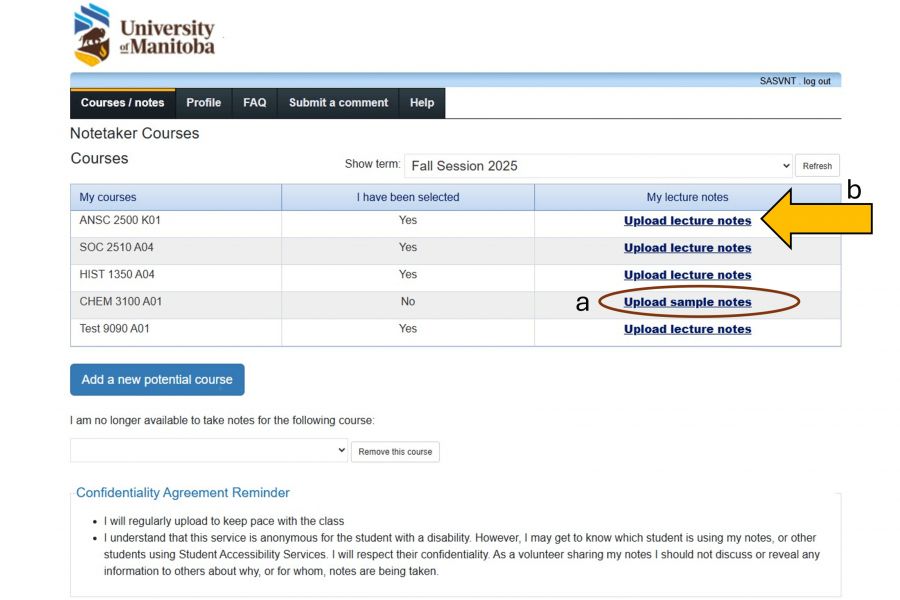
The Notetaker Courses table has headings, "My courses", "I have been selected" and "My lecture notes".
a. If you have not been chosen as a notetaker, you may continue to "Upload sample notes".
b. Once you have been selected as a notetaker, you will upload your notes per course by selecting "Upload lecture notes".
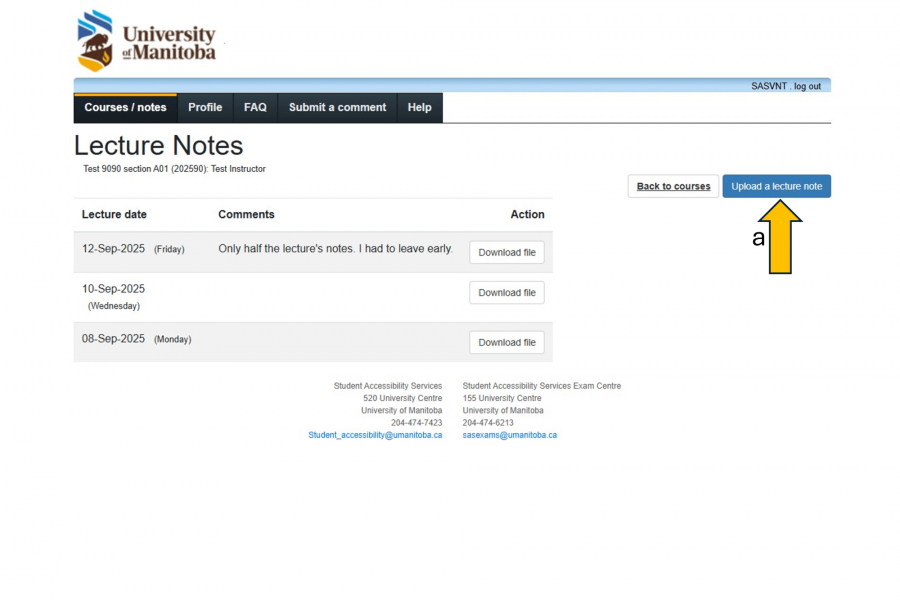
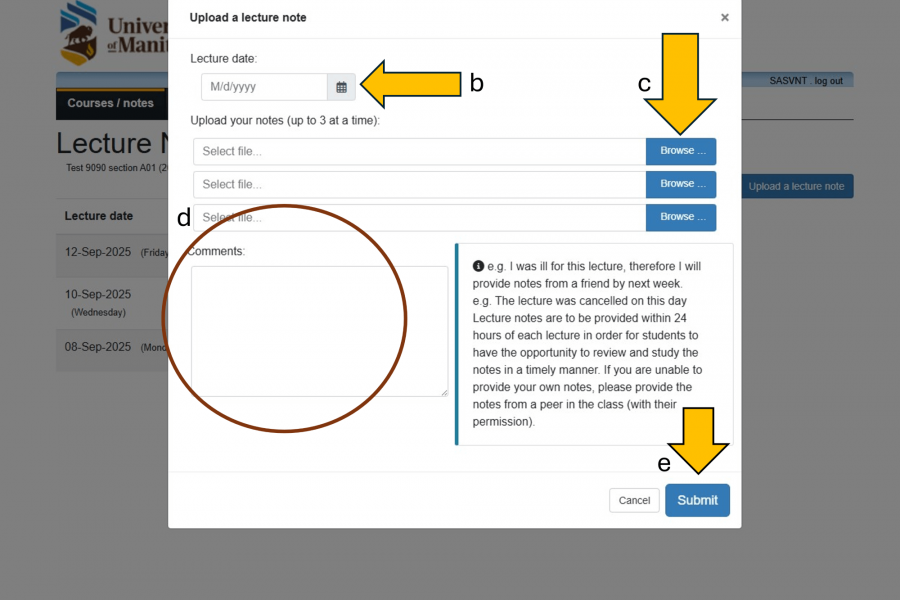
Once on the Lecture Notes screen,
a. select the "Upload a lecture note" button.
b. Select the date of the lecture using the date selector.
c. Select the "Browse" button to upload notes.
d. You may add optional comments.
e. Select "Submit" to complete the upload.
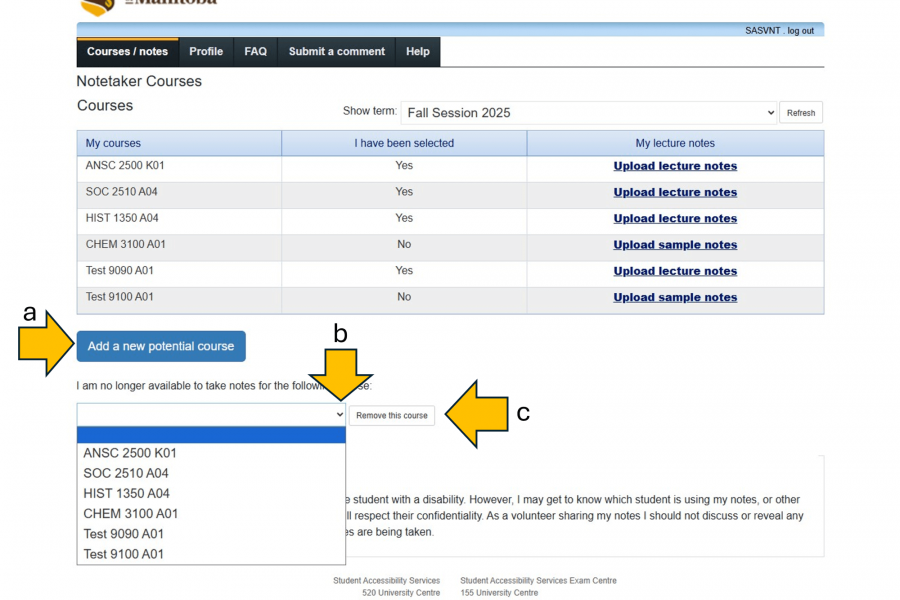
Other actions you may take on the Notetaker Courses page:
a. To add another course to your list, select the "Add a new potential course" button.
b. To remove yourself from a course, find the course in the dropdown.
c. Select the "Remove this course" button.
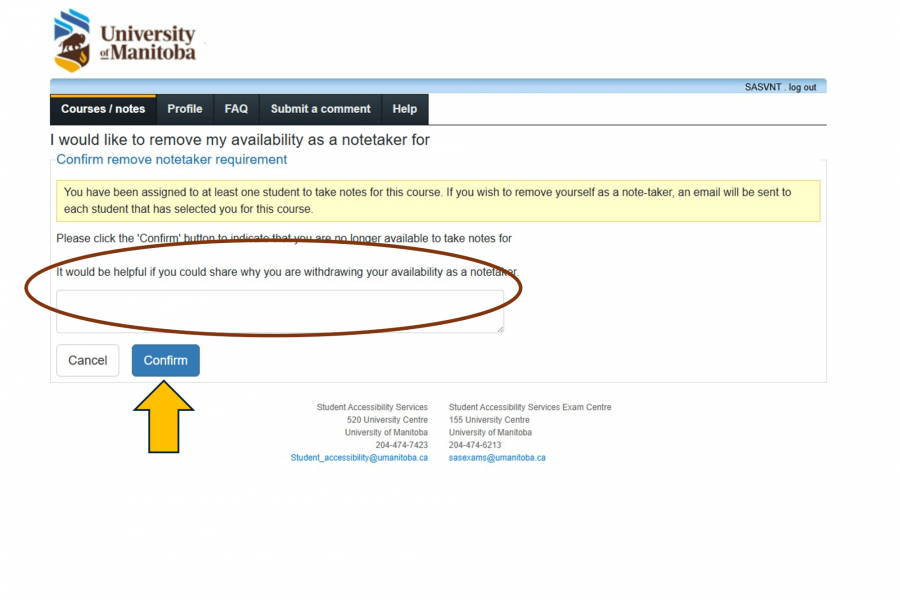
- You may provide us with information about why you are removing yourself from the course as a notetaker. Note: If you drop a course, this will automatically remove that course from the notetaker system.
Forms, policies and resources
Contact us
Student Accessibility Services
Fort Garry campus
520 UMSU University Centre
66 Chancellors Circle
University of Manitoba (Fort Garry Campus)
Winnipeg, MB R3T 5V6 Canada
SAS Exam Centre
155 UMSU University Centre
66 Chancellors Circle
University of Manitoba (Fort Garry campus)
Winnipeg, MB R3T 5V6 Canada
Bannatyne campus
059 Apotex
750 Bannatyne Avenue
University of Manitoba (Bannatyne campus)
Winnipeg, MB R3E 0W2 Canada